
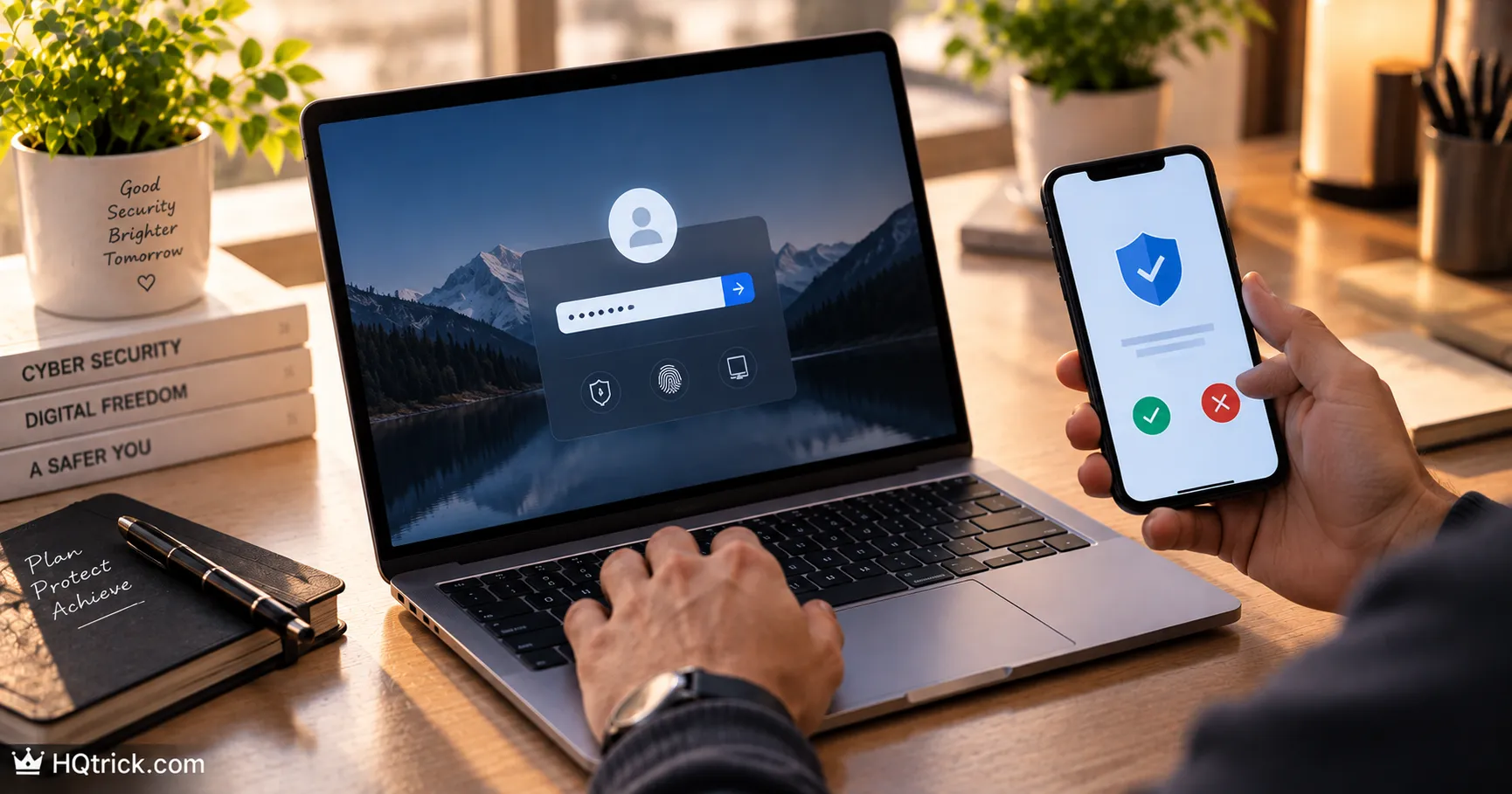
Two-factor authentication is the closest thing to a guaranteed security upgrade that exists.
But the version most people use is the weakest one — and attackers know exactly how to get around it.
First: What Two-Factor Authentication Actually Is
Authentication means proving you are who you claim to be. Systems verify identity using three categories of proof:
Something you know — a password, a PIN, an answer to a security question.
Something you have — your phone, a hardware key, a device that’s already trusted.
Something you are — your fingerprint, your face, your voice.
A password alone uses only the first category. That’s single-factor authentication, and it fails completely the moment the password leaks — which happens constantly through breaches, phishing, and reuse.
Two-factor authentication requires proof from two different categories. Even with your password in hand, an attacker on the other side of the world can’t produce the physical device sitting in your pocket.
Why this matters more than any other setting: The overwhelming majority of account takeovers rely on stolen or guessed credentials. Adding a second factor breaks that entire attack model. It is genuinely the highest-impact ten minutes available in personal security.
Second: The Types of 2FA, From Weakest to Strongest
SMS Codes (Weakest)
A six-digit code texted to your phone number. Universally supported, requires no setup, and better than nothing — but it has a structural flaw covered in detail below.
Email Codes (Also Weak)
A code sent to your email. The problem is circular: if your email is compromised, the second factor is compromised too. And email is the account attackers target first.
Authenticator Apps (Strong — the right choice for most)
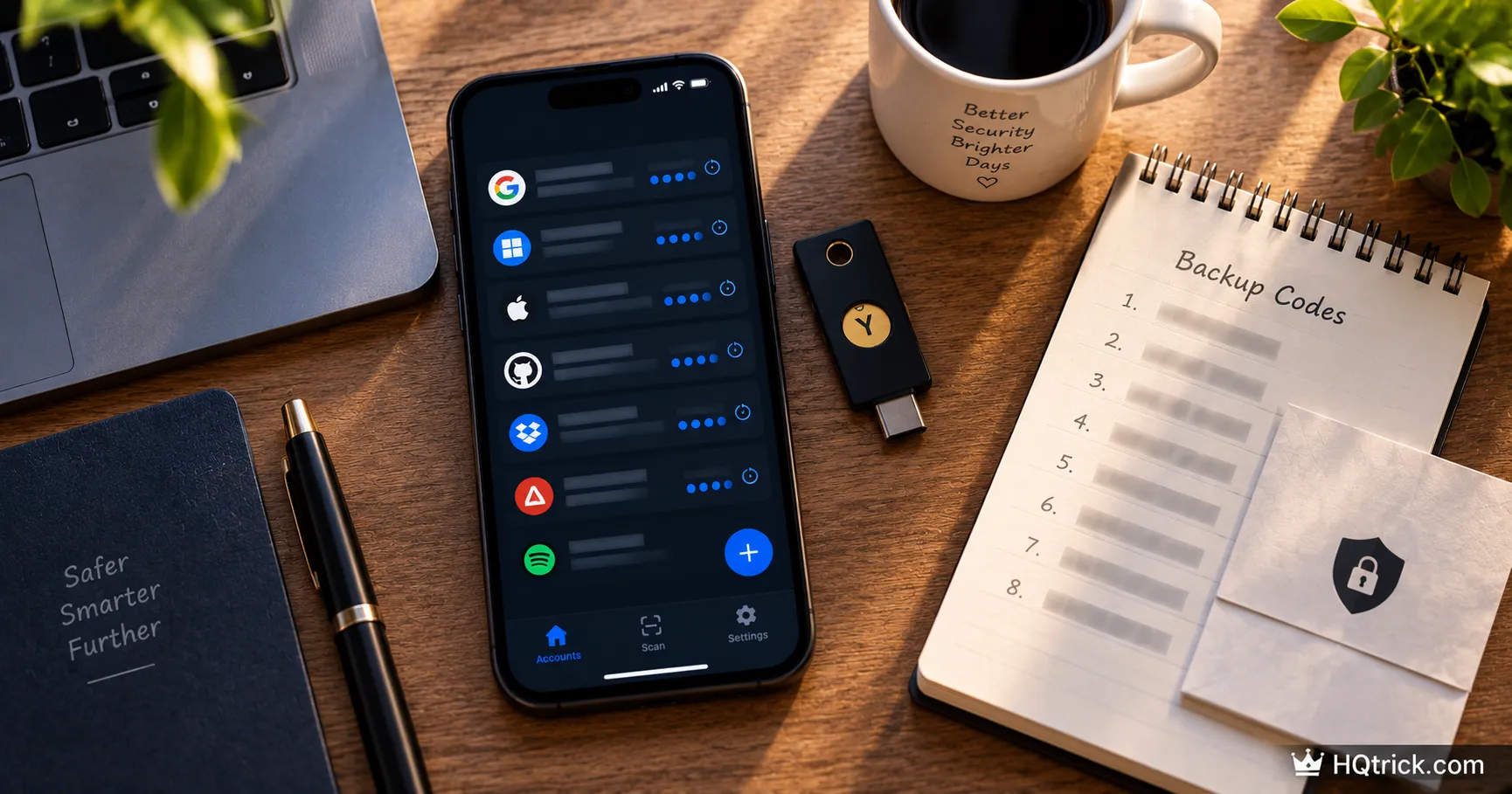
Apps like Google Authenticator, Authy, or your password manager‘s built-in generator produce a rotating six-digit code every 30 seconds. The code is calculated on your device from a secret shared during setup — it never travels over a network, so there’s nothing to intercept.
Works offline, on a plane, with no signal. Free. Supported by essentially every major service.
Push Notifications (Strong, with one caveat)
A prompt appears on your phone: “Approve this login?” You tap yes or no. Convenient and secure — but vulnerable to “MFA fatigue,” where attackers spam approval requests at 3am hoping you’ll tap yes to make it stop. Modern implementations show a matching number on screen, which defeats this.
Passkeys (Very strong, and easiest)
A cryptographic key stored on your device and unlocked by your fingerprint or face. There’s no code to steal, no password to phish — the key only works on the real website, so a fake login page gets nothing. Adoption is growing quickly across Google, Apple, Microsoft, Amazon and more.
Hardware Security Keys (Strongest)
A physical device — a YubiKey or similar — that you plug in or tap. Phishing-resistant by design: the key cryptographically verifies the website’s identity before responding, so a convincing fake site simply doesn’t work.
This is what security professionals and high-risk targets use. Roughly $25–$55, and worth it for your email and financial accounts if you want maximum protection.
Third: Why SMS Codes Are the Weakest Option
SMS-based 2FA still stops the vast majority of automated attacks — so keep it if it’s all a service offers. But understand its two real weaknesses.
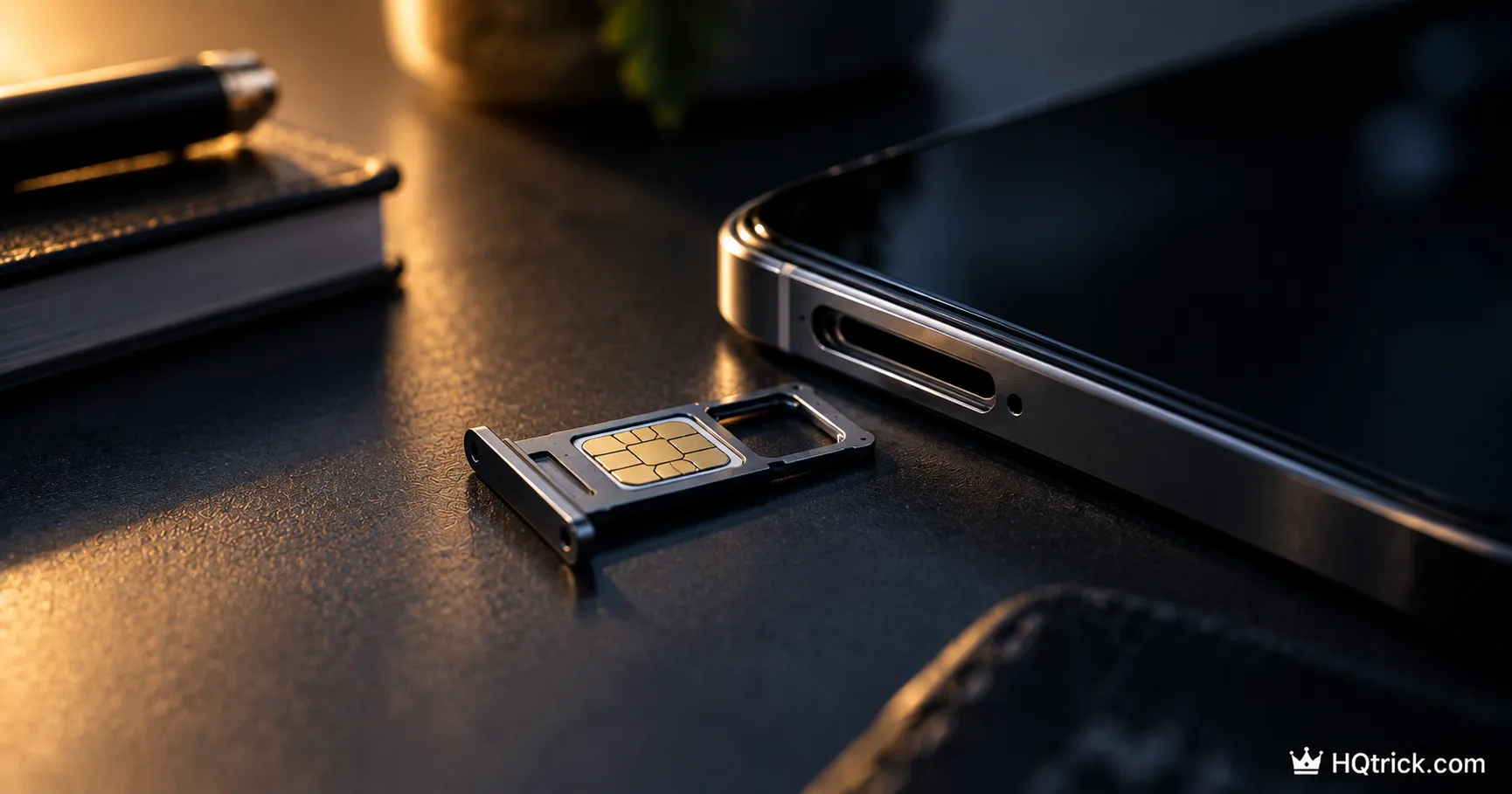
SIM swapping. An attacker contacts your mobile carrier posing as you, claims their phone was lost, and asks to move your number to a new SIM card in their possession. Carrier support staff, working from information often available in past data breaches, sometimes comply.
The moment the swap completes, every SMS code for every account goes to the attacker’s phone. Your phone loses service — which is often the first sign, and by then the reset emails have already been sent.
Phishing in real time. A fake login page captures your password, then immediately prompts: “Enter the code we just texted you.” You enter the real code from your real carrier, and the attacker relays it to the real site within its 30-second window. SMS codes can be relayed this way; hardware keys and passkeys cannot.
How to reduce SMS risk if you must use it: Call your carrier and add a port-out PIN or account security PIN to your line. It’s free, takes ten minutes, and makes SIM swapping substantially harder. Every major carrier offers this.
Fourth: The Comparison Table
| Method | Security | Phishing-Resistant | Works Offline | Best For |
|---|---|---|---|---|
| SMS code | Weak | ❌ No | ❌ No | Last resort only |
| Email code | Weak | ❌ No | ❌ No | Avoid where possible |
| Authenticator app | Strong | ❌ No | ✅ Yes | Most accounts, most people |
| Push approval | Strong | ⚠️ Partly | ❌ No | Convenience with number matching |
| Passkey | Very strong | ✅ Yes | ✅ Yes | Use wherever offered |
| Hardware key | Strongest | ✅ Yes | ✅ Yes | Email, banking, high-value accounts |
The practical takeaway: Use passkeys where they’re offered. Use an authenticator app everywhere else. Keep SMS only where nothing better exists — and add a carrier PIN if you do.
Fifth: How to Set It Up in Ten Minutes
Step 1 — Pick your authenticator. Authy syncs across devices with encrypted backup — the most forgiving option if you lose your phone. Google Authenticator now supports cloud sync too. Your password manager (Bitwarden, 1Password, Proton Pass) can generate codes alongside your passwords, which is the smoothest option if you already use one.
Step 2 — Start with your email. Everything else resets through email, so it gets protected first. In Google: Account → Security → 2-Step Verification. Choose the authenticator app option and scan the QR code.
Step 3 — Save your backup codes properly. Every service gives you a set of one-time recovery codes during setup. These are your way back in if you lose your phone. Store them in your password manager, or print them and keep them somewhere physically safe. Do not screenshot them into your camera roll.
Step 4 — Do your critical accounts next. Banking and financial apps, your primary social account, any shopping account with a saved card, and your password manager itself.
Step 5 — Register a second method where possible. Many services let you add both an authenticator app and a hardware key, or a backup phone. A second registered method turns a lost phone from a crisis into an inconvenience.
Step 6 — Turn on passkeys where offered. Google, Apple, Microsoft, Amazon, PayPal and a growing list now support them. Each one you enable is a login that literally cannot be phished.
Sixth: The Rule That Beats Every 2FA Scam
No legitimate company will ever ask you for your authentication code.
Not your bank calling about “suspicious activity.” Not a marketplace buyer wanting to “verify you’re real.” Not tech support. Not a friend who “lost their account.”
The code exists specifically to prove possession of your device. Anyone requesting it is, without exception, trying to log in as you at that exact moment. The sophistication of the story doesn’t change this — the request itself is the tell.
If someone asks for a code: hang up, don’t reply, and check your account for login attempts.
Seventh: Frequently Asked Questions
Is SMS two-factor authentication safe?
It’s meaningfully better than no 2FA — it stops nearly all automated credential-stuffing attacks. But it’s the weakest method available because SIM swapping can redirect your number to an attacker’s device, and codes can be relayed through real-time phishing. Use an authenticator app or passkey instead wherever a service supports it, and add a port-out PIN with your carrier if you must rely on SMS.
What is the best authenticator app?
Authy is the most forgiving for most people because of its encrypted multi-device backup. Google Authenticator is simple and now syncs across devices. If you already use a password manager like Bitwarden or 1Password, its built-in code generator is the most convenient option because everything lives in one place.
What happens if I lose my phone with my authenticator on it?
This is why backup codes exist — the one-time recovery codes each service gives you at setup. Store them in your password manager or on paper somewhere safe. Apps with cloud backup (Authy, Google Authenticator, password managers) restore automatically on a new device. Registering a second 2FA method in advance is the best insurance.
Are passkeys better than two-factor authentication?
Passkeys aren’t a competing option — they’re a stronger replacement for the password itself. A passkey is unlocked by your fingerprint or face, so it already combines something you have with something you are. They’re phishing-resistant in a way codes are not. Enable them wherever offered, and keep an authenticator app registered as a backup method.
Can hackers bypass two-factor authentication?
Some methods can be bypassed: SMS through SIM swapping, codes through real-time phishing relays, push approvals through fatigue attacks. Passkeys and hardware security keys are resistant to all of these because they cryptographically verify the real website before responding. No method is perfect, but any 2FA blocks the overwhelming majority of real-world attacks.
Which accounts should I enable 2FA on first?
Email first, always — it’s the reset path for everything else. Then your password manager, financial accounts, primary social account, and any account storing payment details. After those, enable it everywhere it’s offered; each one takes about a minute.
Conclusion: The Best Ten Minutes You’ll Spend on Security
A password can be stolen from a breach you’ll never hear about. A second factor can’t be stolen the same way — it requires something physically in your possession.
Start with email. Use an authenticator app. Save your backup codes. Turn on passkeys where you see them offered.
Ten minutes now removes the most common way ordinary people lose their accounts.
Codes and passwords protect the account — but scams target you directly. Read How to Spot Phishing Scams Before They Get You for the patterns that give every attack away.
hqtrick.com/ — Your Daily Trick to a Better Life