
Hackers don’t break in. They log in — using passwords you reused, codes you gave away, and links you clicked.
Here are the five defenses that stop almost all of it.
First: How People Actually Get Hacked
Forget the movie version — a hooded genius typing furiously to “break through the firewall.” Real attacks on normal people are simpler, cheaper, and almost boring:
Credential stuffing. A website you used years ago gets breached. Your email and password leak. Automated bots then try that same combination on Gmail, PayPal, Amazon, and your bank — because most people reuse passwords. No genius required; the bots do millions of attempts per hour.
Phishing. A fake email or text pretending to be your bank, a delivery company, or your boss — designed to make you click a link and type your password into a fake page. Over 90% of successful attacks start exactly this way.
SIM swapping and code theft. Attackers convince your phone carrier to move your number to their SIM, or simply ask you for the 6-digit code “to verify your account.” The code is the key — whoever has it, wins.
Malware from downloads. Cracked software, fake browser updates, and malicious email attachments that quietly install software watching everything you type.
Notice what’s missing: sophisticated hacking. Every one of these attacks needs your cooperation — a reused password, a click, a shared code. Which means every one of them can be shut down by habits, not expertise.
Second: Defense 1 — Fix Your Passwords (The Biggest Win)
If you do only one thing from this entire guide, do this.
The problem in numbers: The average person has over 100 online accounts and reuses the same handful of passwords across them. When any single site leaks — and sites leak constantly — every account sharing that password is exposed. You can check your own email at haveibeenpwned.com and see which breaches already include your data. For most people, the answer is several.
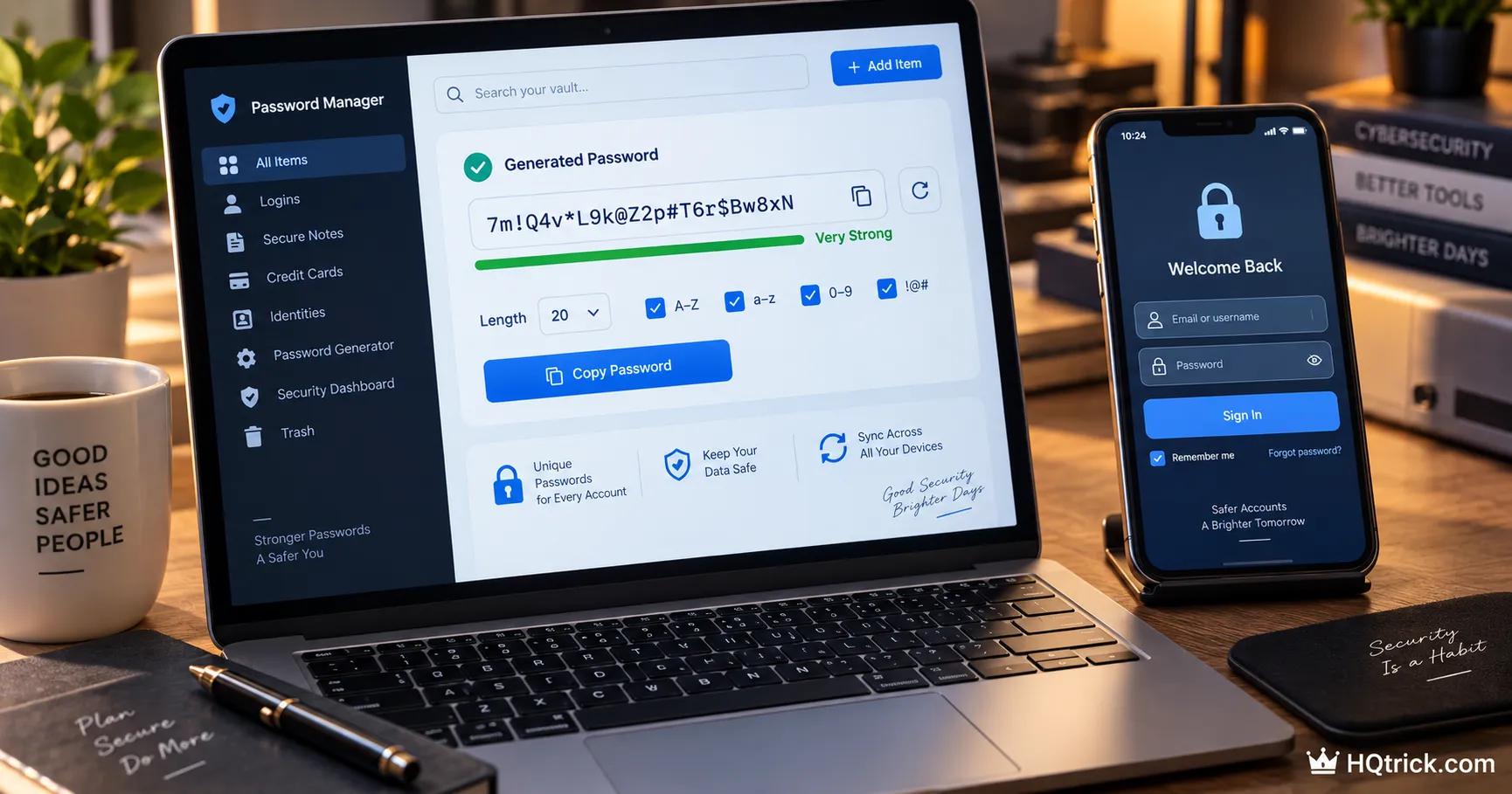
The solution: a password manager. One app that generates a long, unique, random password for every account and remembers them all. You memorize exactly one master password. The manager handles the rest — and auto-fills only on the real website, which quietly protects you from fake login pages too.
The honest recommendations:
- Bitwarden — free, open-source, audited. The best starting point for most people.
- 1Password — ~$36/year, the most polished experience, excellent for families.
- Your browser’s built-in manager (Chrome/Safari) — better than reuse, weaker than a dedicated manager, acceptable as a first step.
Do this today: Install a manager, then change just your three most important passwords — email, banking, and your main social account. Email first: whoever controls your email can reset everything else.
Third: Defense 2 — Two-Factor Authentication (The Backup Lock)
Two-factor authentication (2FA) means logging in requires something you know (password) plus something you have (your phone). Even if your password leaks, the attacker still can’t get in.
The hierarchy — from weakest to strongest:
| Method | Security | Verdict |
|---|---|---|
| SMS codes | Weak — SIM swapping bypasses it | Better than nothing |
| Authenticator app | Strong — codes live on your device | The right choice for most |
| Hardware key (YubiKey) | Strongest — physically unphishable | For high-value accounts |
| Passkeys | Very strong + effortless | Use wherever offered |
The practical move: Install Google Authenticator, Authy, or use your password manager’s built-in authenticator. Turn on 2FA for your email, bank, and main social accounts — 15 minutes total, and it blocks the single most common account takeover path.
The rule that beats every scam: A real company will NEVER ask you for your 2FA code — not by phone, not by text, not by email. Anyone asking for a code is an attacker, every single time, no exceptions.
Fourth: Defense 3 — Update Everything (The Boring One That Works)
Software updates aren’t about new features — they’re mostly patches for security holes that attackers are actively exploiting. Running outdated software is leaving a known, published, documented door open.
Make it automatic and forget it:
- Phone: Settings → enable automatic updates
- Computer: enable automatic OS updates
- Browser: Chrome, Safari, and Firefox update themselves — just restart them occasionally
- Everything else: when an update notification appears, the answer is yes, today, not “remind me later” for a month
And delete what you don’t use. Every old app and browser extension is an unlocked window. If you haven’t opened it in six months, remove it.
Fifth: Defense 4 — Learn to Spot Manipulation
Every scam — email, text, phone call, DM — is built on the same three-part skeleton:
Urgency (“your account will be closed in 24 hours”) + fear or greed (“suspicious charge detected” / “you’ve won”) + an action they need (click this link, share this code, buy these gift cards).
The defenses that work:
Never act from inside the message. If “your bank” emails about a problem, don’t click the email’s link — open your banking app directly or type the address yourself. If the problem is real, it’ll be there. This one habit defeats nearly all phishing.
Slow down when pressured. Urgency is the tell. Real institutions don’t demand action in minutes. The moment a message makes your heart rate rise, that’s your signal to stop, not to click.
Verify people through a second channel. Boss texting you to buy gift cards? Family member calling in a panic asking for money? Hang up and call them back on the number you already have. Voice-cloning scams are real — the callback defeats them.
Sixth: Defense 5 — Lock Down the Recovery Paths
Attackers rarely attack the front door of a well-defended account — they attack the recovery process.
Your email is the master key. Password resets for everything flow through it. It deserves your longest password and your strongest 2FA before any other account.
Check your recovery settings today: In Gmail (Security → Recovery), confirm the backup email and phone number are actually yours and current. An old recovery email you no longer control is a stolen master key waiting to happen.
Review connected devices and sessions. Google, Facebook, and Apple all show every device logged into your account. Anything you don’t recognize — sign it out and change the password immediately.
Freeze what you don’t use. In the US, freezing your credit with the three bureaus (Equifax, Experian, TransUnion) is free, takes 20 minutes, and blocks identity thieves from opening accounts in your name. Unfreeze temporarily whenever you actually need credit.
Seventh: Frequently Asked Questions
How do I know if my information has been leaked?
Enter your email at haveibeenpwned.com — a free, legitimate service that checks known data breaches. If your email appears (it almost certainly will), change the password on every account that shared the leaked one, and enable 2FA.
What is the safest way to store passwords?
A dedicated password manager — Bitwarden (free) or 1Password (paid). Not a notebook someone can photograph, not a notes app that syncs unencrypted, and never your memory forcing you into reuse. The manager encrypts everything behind one strong master password.
Do I need antivirus software?
Windows Defender (built into Windows) and macOS’s built-in protections cover most people well today. Third-party antivirus adds value mainly for risky behavior — frequent downloads from untrusted sources. Your habits protect you more than any scanner.
Is public Wi-Fi safe to use?
Safer than it used to be — most sites now use HTTPS encryption. Browsing and reading are fine. For banking or sensitive logins on public networks, your phone’s mobile data or a VPN adds a meaningful layer. Never install anything a public network’s login page asks you to install.
What should I do first if I think I’ve been hacked?
Change the password of the affected account from a different, clean device — email first if it’s touched. Sign out all sessions, enable 2FA, check recovery settings for changes, and watch bank statements. Then change any account sharing that password.
Are password managers themselves safe to trust?
They encrypt your vault so that even the company can’t read it — only your master password unlocks it. No system is perfect, but every security professional agrees: a manager with unique passwords is dramatically safer than reuse without one. The math isn’t close.
Conclusion: Security Is a Habit, Not a Product
Nobody hacks the person with unique passwords, 2FA on email, updated software, and the reflex to verify before clicking. It’s not worth the attacker’s time — they move on to the millions who skipped these steps.
One hour of setup. A lifetime of being the harder target.
Start with the password manager. Today.
Passwords are the foundation — go deeper with Best Password Managers Compared Honestly to pick the right one in ten minutes.
hqtrick.com/ — Your Daily Trick to a Better Life