

Public Wi-Fi Safety — What’s Actually Risky and What Isn’t
You’ve been told never to check your bank on coffee shop Wi-Fi. That advice was written for an internet that no longer exists.
Here’s what genuinely matters now — and what stopped mattering years ago.
First: Why the Old Warnings Existed
The classic public Wi-Fi nightmare was real, and it worked like this:
Most websites in the early 2010s sent data unencrypted. Anyone connected to the same network could run software that simply read the traffic passing through the air — usernames, passwords, cookies, messages — in plain text. A browser extension called Firesheep demonstrated this so easily in 2010 that non-technical people could hijack strangers’ Facebook sessions from a café table.
That’s where “never use public Wi-Fi for anything important” came from. It was excellent advice at the time.
Then the entire web encrypted itself.
The overwhelming majority of web traffic now uses HTTPS, which encrypts data between your device and the website before it ever touches the network. Browsers actively warn you when a site doesn’t. The passive eavesdropping attack that made public Wi-Fi genuinely dangerous no longer works against normal browsing.
The advice never updated. The threat model did.
Second: What Actually Changed — HTTPS
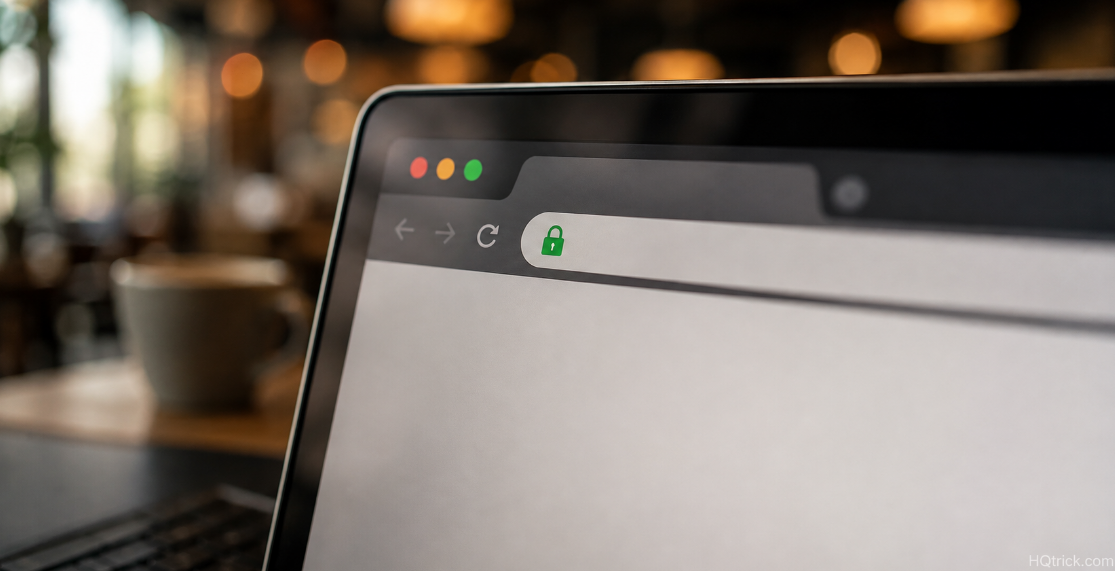
When you see the padlock in your address bar, the connection between your device and that website is encrypted end to end.
What someone on the same network can still see:
- That you connected to a website (the domain name, in most cases)
- How much data you transferred and when
What they cannot see:
- The pages you viewed
- Anything you typed — passwords, messages, card numbers
- The content of anything you sent or received
This is the key point most public Wi-Fi articles skip: the encryption isn’t provided by the network. It’s provided by the website and your browser. A hostile network can’t remove it.
That’s why logging into your bank on café Wi-Fi is not the catastrophe it’s described as. Your banking app and your bank’s website encrypt the session themselves, regardless of whose router you’re using.
Third: The Risks That Are Still Real
The threat didn’t disappear — it narrowed. These are the ones worth caring about.
Evil Twin Networks (the real risk)
An attacker sets up a hotspot named something plausible: Airport_Free_WiFi, Starbucks Guest, Hotel_WiFi_2. You connect, believing it’s the venue’s network. Now they control the network you’re on.
Encryption still protects your HTTPS traffic — but they control what happens before that. They can present a fake captive portal asking you to “sign in” with an email password. They can serve a page insisting you install a certificate or an app. They can redirect unencrypted requests to lookalike sites.
The defense: Ask staff for the exact network name. Be suspicious of networks with no password at venues that would normally have one. Never install anything a network asks you to install.
Malicious Captive Portals
That login page you get on hotel and airport Wi-Fi is a perfect phishing surface — you already expect to enter something. A hostile one asks for your email password, your room number and surname, or your card details for a “premium upgrade.”
The defense: A legitimate portal asks for a room number or a voucher code, or just a click to accept terms. It never needs your email password. Never enter credentials you use elsewhere.
Fake Update and Install Prompts
A hostile network can inject a prompt into unencrypted pages telling you your browser or a plugin needs updating. Real browser updates never arrive this way.
The defense: Never update anything from a prompt that appears while browsing. Update through the app itself.
Your Own Device Being Visible
On an open network, file sharing and network discovery can expose your device to others on that network.
The defense: When Windows asks whether a network is Public or Private, choose Public — it disables discovery and sharing. On Mac, turn off File Sharing and AirDrop “Everyone” when out.
Juice Jacking — the honest version
Public USB charging ports can theoretically transfer data, not just power. Real-world cases are extremely rare, and modern phones ask permission before allowing data transfer.
The defense: If it concerns you, use your own charger in a wall socket, or a charge-only cable. It’s a minor risk, not the crisis some warnings suggest.
Fourth: The Habits That Actually Matter
| Habit | Why It Matters | Effort |
|---|---|---|
| Verify the network name with staff | Defeats evil twin attacks | 10 seconds |
| Turn off auto-connect to open networks | Stops silent joins to hostile hotspots | One-time setting |
| Set the network to “Public” | Hides your device from others on it | One tap |
| Never install anything a network requests | Blocks the main real attack path | Free |
| Use mobile data for anything sensitive | Skips untrusted networks entirely | Pennies |
| Use a VPN on untrusted networks | Encrypts everything, including DNS | ~$3–5/month |
| Keep 2FA on your accounts | Makes stolen passwords useless | Already done |
Turn off auto-connect specifically. Phones remember network names and rejoin them automatically. An attacker broadcasting a common name your phone has seen before — attwifi, a hotel chain’s SSID — can get your device to connect silently while it’s in your pocket.
iPhone: Settings → Wi-Fi → Ask to Join Networks → Ask; and turn off Auto-Join for public networks you’ve saved. Android: Settings → Network → Wi-Fi preferences → turn off “Connect to open networks.”
And the underrated one: use your phone’s hotspot. Mobile data is encrypted between your device and the carrier, costs very little for typical laptop use, and removes the entire question. For anything genuinely sensitive on the road, this is simpler and more effective than any other advice here.
Fifth: Do You Actually Need a VPN?
This is the question the entire public Wi-Fi conversation now revolves around — and the honest answer is more nuanced than either the VPN ads or the skeptics suggest.
What a VPN genuinely does on public Wi-Fi:
It encrypts all your traffic between your device and the VPN server, not just HTTPS web traffic. That includes DNS lookups (which reveal which sites you visit even over HTTPS), any app still using unencrypted connections, and the metadata a network operator would otherwise see.
It also protects against a hostile network manipulating unencrypted requests, and hides your browsing from the network operator entirely.
What it doesn’t do:
It doesn’t make you anonymous, doesn’t stop phishing, doesn’t protect you from malware, and doesn’t help if you type your password into a fake site. It also shifts trust rather than removing it — your traffic is now visible to the VPN provider instead of the network, which is why free VPNs are a bad trade.
The honest verdict:
Worth it if: You work on public networks regularly, travel often, handle client or company data, or connect in places where network operators may be actively hostile.
Optional if: You occasionally check email at a café. HTTPS plus 2FA plus not installing things already covers you well.
If you do use one, pick a paid provider with audited no-logs claims. Free VPNs typically monetize by logging and selling the very data you installed them to protect.
Sixth: Frequently Asked Questions
Is it safe to use public Wi-Fi for online banking?
Generally yes. Banking apps and websites use strong end-to-end encryption that a network operator cannot break or remove, so your credentials and transactions stay protected even on an untrusted network. The real risks are connecting to a fake network and entering details into a phishing page — not the network reading your banking session. If you want certainty, use your phone’s mobile data instead.
Do I really need a VPN on public Wi-Fi?
Not strictly, for casual browsing — HTTPS already encrypts most traffic. A VPN adds meaningful value if you use public networks frequently, travel, handle sensitive work data, or want to hide your browsing from the network operator. For occasional café use with 2FA enabled, it’s optional rather than essential.
How can I tell if a public Wi-Fi network is fake?
Ask staff for the exact network name and check for character-level differences. Be cautious of networks that require no password where you’d expect one, portals asking for an email password, or any prompt to install software or a certificate. Turning off auto-connect prevents your device joining lookalike networks silently.
Can someone see what I’m browsing on public Wi-Fi?
They can typically see which domains you connect to and how much data you transfer, but not the pages you view or anything you type on HTTPS sites. A VPN hides even the domain-level visibility by encrypting DNS and all traffic to the VPN server.
Is hotel Wi-Fi safe to use?
It carries the same risks as any public network, with two extras: hotel captive portals are a common phishing target, and hotel networks are shared with many strangers for long periods. Set the network to Public, avoid entering credentials into the portal beyond a room number, and use mobile data or a VPN for sensitive work.
Is charging my phone at a public USB port dangerous?
The theoretical risk exists, but documented real-world cases are very rare, and modern phones prompt before allowing any data connection. Using your own charger in a wall outlet or a charge-only cable removes the concern entirely — treat it as a small precaution, not an emergency.
Conclusion: Update the Advice, Not the Anxiety
Public Wi-Fi is no longer the open window it was in 2012. The web encrypted itself, and the passive snooping attack that justified the old warnings largely stopped working.
What remains is narrower and more human: fake networks, fake login pages, and fake update prompts — all of which need you to make a decision.
Verify the network name. Don’t install what it asks. Keep 2FA on. Use mobile data when it genuinely matters.
That’s the modern version of the advice.
HQTRICK.COM — Your Daily Trick to a Better Life