
How to Secure Your Home Wi-Fi Network in 30 Minutes
Every device in your home — laptops, phones, cameras, speakers, the TV — passes through one box you’ve probably never configured.
Thirty minutes with it closes doors most people leave open for years.
First: Why Your Router Is the Most Overlooked Device You Own
Your router is the gatekeeper of your entire digital home. Every website you visit, every file you download, every smart device that phones home — all of it flows through this one piece of hardware.
Yet it’s the device people configure once (or never, if the ISP set it up) and then ignore for a decade.
What an attacker gains from a compromised router:
Visibility into your traffic. They can see which sites and services your household connects to, and redirect your DNS so that typing a real bank address quietly loads a fake one.
A foothold on your network. Once inside, devices that trust the local network — network drives, printers, smart cameras, older devices with weak protections — become reachable in ways they never are from the internet.
Your bandwidth and your reputation. Compromised home routers are routinely recruited into botnets, meaning attacks are launched from your address.
The uncomfortable part: most home routers ship with a default administrator password printed on a sticker, run firmware that hasn’t been updated since manufacture, and expose management interfaces that were never meant to be reachable. None of that requires sophistication to exploit — it requires the owner never having looked.
Second: How to Get Into Your Router Settings
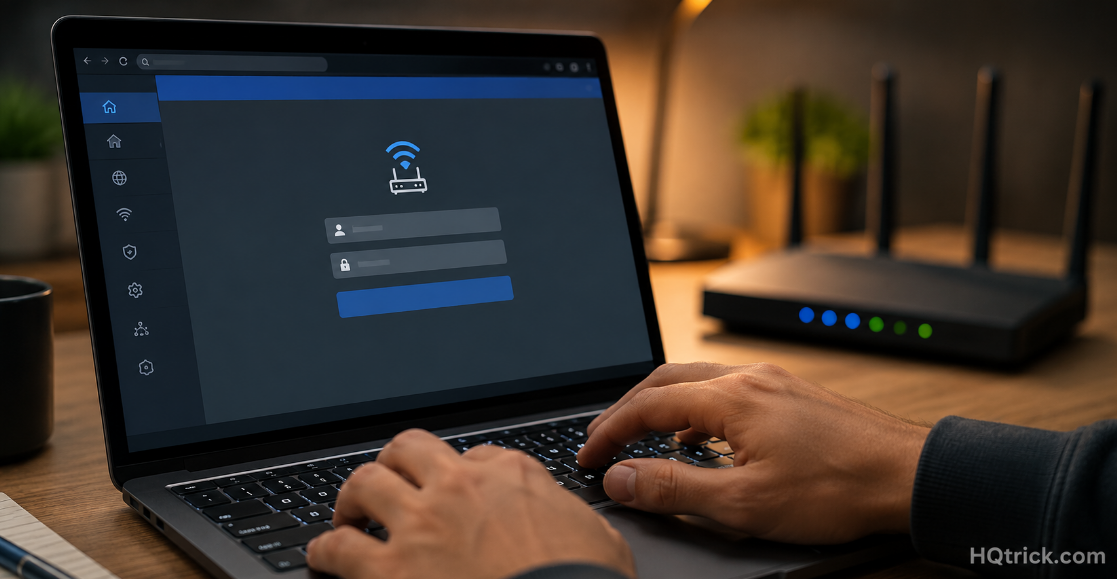
Everything in this guide happens inside your router’s admin panel. Getting there takes two minutes.
Step 1 — Find the router’s address. It’s usually printed on a sticker on the router itself. The common ones: 192.168.1.1, 192.168.0.1, or 10.0.0.1.
On Windows: Open Command Prompt, type ipconfig, and look for “Default Gateway.” On Mac: System Settings → Network → Details → TCP/IP, look for “Router.” On phone: Wi-Fi settings → tap your network → look for “Router” or “Gateway.”
Step 2 — Open it in a browser. Type that address into your browser’s address bar. You’ll get a login page.
Step 3 — Log in. The default username and password are on the router’s sticker. Common defaults: admin / admin, admin / password, or blank.
If your ISP manages the router: Many providers use an app instead of a web panel, and some lock certain settings. Do what you can in the app, and call support for anything the app won’t let you change — particularly the admin password and firmware updates.
Third: The 30-Minute Security Checklist
1. Change the admin password (5 minutes) — Most important
This is the password that protects the router’s settings, and it is not the same as your Wi-Fi password. Most people never change it, which means anyone who gets onto the network can reconfigure everything.
Set a long, unique password and store it in your password manager. This single change closes the widest gap in most home networks.
2. Set your Wi-Fi to WPA3, or WPA2 (3 minutes)
In wireless security settings, choose WPA3 if your router supports it. If not, WPA2 (AES) is still solid. WPA3-Personal is meaningfully stronger — it protects against offline password-guessing attacks that WPA2 allows.
Never use: WEP or WPA (original). Both are broken and crackable in minutes. If your router only offers these, it’s old enough to replace.
Avoid “WPA/WPA2 mixed” mode unless you have an ancient device that requires it — mixed mode falls back to the weaker standard.
3. Use a strong Wi-Fi password (2 minutes)
Long beats complex. A passphrase like copper-lantern-drift-marble is easier to share with guests and harder to crack than Wifi2024!. Aim for 16+ characters.
4. Update the firmware (5 minutes)
Look for Administration, System, or Firmware in the menu. Check for updates and install them. Router firmware contains security patches, and vulnerabilities in popular models get published publicly — meaning unpatched routers are searchable targets.
Enable automatic updates if your router offers it. If it doesn’t, set a calendar reminder every six months.
5. Turn off WPS (2 minutes)
WPS (Wi-Fi Protected Setup) is the feature that lets devices join by pressing a button or entering an 8-digit PIN. The PIN implementation has a well-documented flaw that allows it to be brute-forced. Turn WPS off entirely — typing a password is a small price.
6. Disable remote management (2 minutes)
Remote management lets you access the router’s admin panel from outside your home. Almost nobody needs this, and it exposes your admin login to the entire internet. Find it under Administration or Advanced, and switch it off.
7. Turn off UPnP if you can (3 minutes)
UPnP lets devices automatically open ports through your firewall without asking. Convenient for gaming consoles and some apps, but it means any compromised device can open its own door outward.
Turn it off. If a game console or specific app breaks, turn it back on or forward that one port manually.
8. Rename your network (2 minutes)
Change the network name (SSID) from the factory default. Defaults like NETGEAR58 or TP-Link_2.4G tell an attacker the manufacturer and often the model — which maps directly to known default passwords and published vulnerabilities.
Don’t include your name, apartment number, or address in the new name.
9. Set up a guest network (5 minutes)
Covered in detail below — but enable it now while you’re in the settings.
Fourth: The Settings People Waste Time On
Several “security tips” circulate widely that provide almost no real protection. Skip them.
| Common Advice | Reality |
|---|---|
| Hide your SSID | Networks are trivially discoverable anyway; hiding causes device issues and provides no meaningful security |
| MAC address filtering | MAC addresses are broadcast in the clear and easily spoofed; high hassle, near-zero benefit |
| Reduce transmit power | Marginal, and degrades your own coverage more than an attacker’s ability to connect |
| Change Wi-Fi password monthly | Unnecessary with a strong WPA3 passphrase; creates churn without benefit |
Your time is better spent on the nine items above — especially the admin password, firmware updates, and WPA3.
Fifth: Smart Devices and the Guest Network Trick
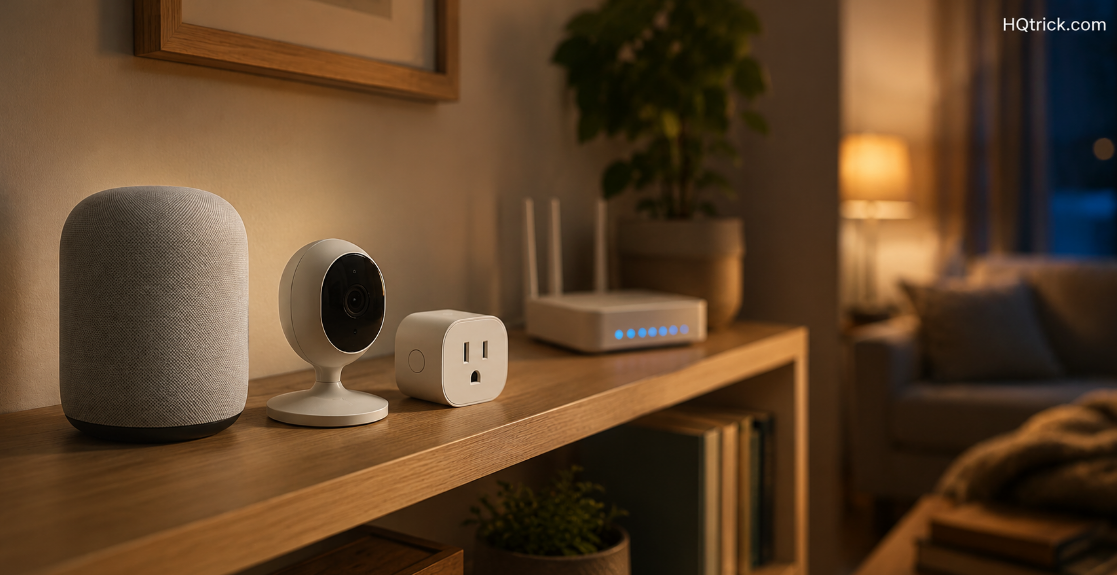
Smart home devices are the weakest link in most modern home networks. Budget cameras, plugs, and bulbs frequently ship with poor security, stop receiving updates quickly, and sometimes send data to servers you’d rather they didn’t.
The problem: a compromised smart bulb sitting on the same network as your laptop can be used to reach that laptop.
The fix — network separation:
Put every smart home device on your guest network, and keep your computers and phones on the main network. Guest networks are isolated by design: devices on them generally can’t see or reach devices on the main network.
This one change means that even if a cheap camera is compromised, the attacker is stuck in a segment containing only other lightbulbs.
How to do it: In your router settings, find “Guest Network” and enable it with its own name and password. Then reconnect your smart devices to that network instead. Some routers offer a dedicated “IoT network” — use it the same way.
Also worth doing with smart devices:
- Change default passwords on every device that has one, especially cameras
- Disable features you don’t use — remote access, cloud recording, microphones on devices you only want for one function
- Check whether the manufacturer still issues updates; if a device stopped receiving them years ago, it’s a permanent open window
Sixth: When to Replace Your Router Entirely
Sometimes the honest answer isn’t a setting — it’s new hardware.
Replace it if:
- It doesn’t support WPA3, or worse, only supports WEP/WPA
- The manufacturer no longer releases firmware updates for your model (check their support page)
- It’s more than five to six years old
- It’s the free box your ISP handed over years ago and has never been updated
What to look for in a replacement: WPA3 support, automatic firmware updates, guest network support, and a manufacturer with a track record of issuing patches. Wi-Fi 6 or 6E is the current sensible baseline for performance.
Mesh systems from established brands generally handle updates automatically, which removes the most commonly skipped maintenance task from your hands entirely.
Seventh: Frequently Asked Questions
How do I know if someone is using my Wi-Fi?
Log into your router’s admin panel and look for a “Connected Devices,” “Device List,” or “DHCP Clients” page. It shows every device currently connected. Compare it against what you own — remembering that TVs, consoles, and smart devices all appear separately. If you find something unfamiliar, change your Wi-Fi password immediately, which disconnects everything and forces each device to rejoin.
Is WPA3 better than WPA2?
Yes. WPA3 protects against offline dictionary attacks, where an attacker captures your network handshake and then guesses passwords at leisure on their own hardware. WPA2 allows this; WPA3 does not. If your router and devices support WPA3, use it. If not, WPA2 with AES and a long passphrase remains reasonably secure.
Should I change my Wi-Fi password regularly?
Not on a schedule. A long, unique WPA3 or WPA2 passphrase doesn’t degrade over time. Change it when someone who had access no longer should, when you spot an unfamiliar device, or if you ever shared it broadly.
What is a guest network and do I need one?
A guest network is a separate Wi-Fi network on the same router, isolated from your main one. Devices on it usually can’t reach devices on your primary network. Use it for visitors and — more importantly — for smart home devices, so that a compromised camera or plug can’t reach your laptop or phone.
Can someone hack my router from outside my house?
Yes, if remote management is enabled, firmware is outdated, or the admin password is still the default. Disabling remote management, keeping firmware current, and setting a strong unique admin password removes nearly all of that exposure.
Does my ISP’s router need extra settings changed?
Usually yes — ISP-supplied routers often ship with weak defaults and sometimes with remote management enabled for support purposes. Change the admin password, verify WPA2/WPA3 is in use, and check for updates. If the provider’s app blocks a setting, call support and ask them to change it, or use your own router in place of theirs.
Conclusion: Half an Hour, Once, for Years of Protection
The router is the least glamorous device in your home and the one with the widest reach.
Change the admin password. Set WPA3. Update the firmware. Turn off WPS and remote management. Move your smart devices to a guest network.
Thirty minutes today, and then a firmware check twice a year. That’s the whole job.
HQTRICK.COM — Your Daily Trick to a Better Life