
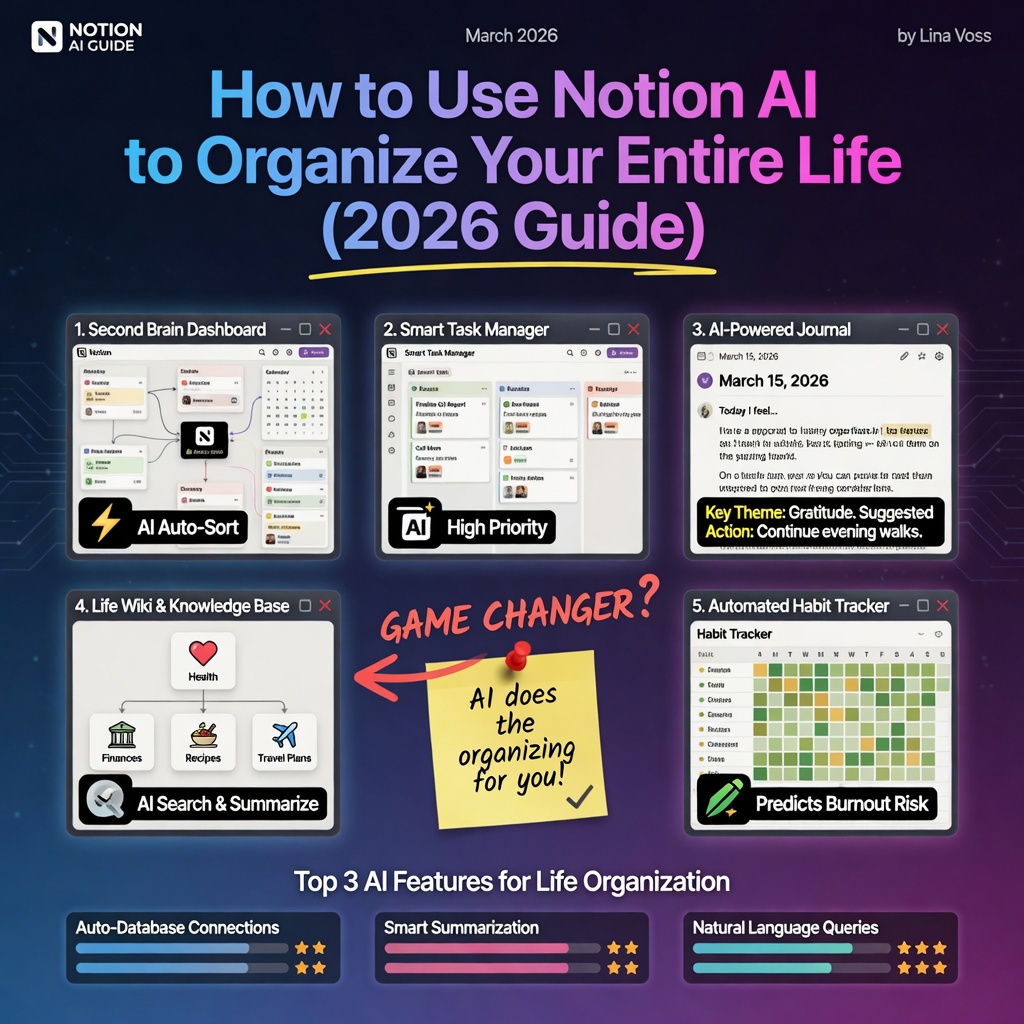
How to Use Notion AI to Organize Your Entire Life (2026 Guide)
Notion started as a note-taking app. Then it became a project management tool. In 2026, with Notion AI embedded throughout, it’s become something closer to a personal operating system — one that can read, write, summarize, and organize everything you store in it.
The problem is that most people use Notion at 10% of its capacity. They have a chaotic collection of pages that never quite came together into a usable system. This guide fixes that with a practical Notion AI setup you can build in an afternoon.
What Notion AI Actually Does (And What It Doesn’t)
Notion AI can:
- Write, edit, and improve any text inside your workspace
- Summarize long pages and documents into key points
- Generate structured content from rough notes
- Answer questions about content stored in your workspace
- Create tables, lists, and structured templates from prompts
- Translate content into other languages
- Find and surface information across your pages
Notion AI cannot:
- Search the web (it only knows what’s in your Notion)
- Connect to external apps or databases
- Remember things you haven’t added to Notion
- Replace human judgment on important decisions
The power is proportional to what you’ve stored. A well-organized Notion becomes an AI-powered second brain. A messy one stays messy.
The 4-Area Life Organization System
The most effective Notion setups organize around four areas:
1. Work — projects, tasks, meetings, goals 2. Knowledge — notes, research, learning, references 3. Life — personal goals, health, finances, relationships 4. Capture — inbox for anything that doesn’t have a home yet
Here’s how to build each with AI assistance.
Area 1: Work Hub
Create a Work Hub page with these databases:
Projects Database: Each project gets a page with status, deadline, priority, and linked tasks.
Notion AI prompt to set it up: “Create a projects database template with these properties: Project Name, Status (Not Started / In Progress / Complete / On Hold), Priority (High / Medium / Low), Start Date, Due Date, Notes. Add a template for new projects that includes sections for: Objective, Key Deliverables, Stakeholders, Risks, and Progress Log.”
Meeting Notes Template: Prompt: “Create a meeting notes template with sections for: Date, Attendees, Agenda, Discussion Points, Decisions Made, Action Items (with owner and due date), and Next Meeting Date.”
After each meeting: paste your rough notes and ask Notion AI to “organize these meeting notes into the standard template format and extract all action items.”
Area 2: Knowledge Base
This is where Notion AI becomes most powerful. Build a searchable repository of everything you learn.
Setup:
- One database for all notes, research, and reference material
- Tags for topic, source type, and relevance
- AI summaries for every long document you add
How to use AI here:
- Paste any article, research paper, or long document into a Notion page
- Ask AI: “Summarize the 5 most important points from this article”
- Ask AI: “What are the practical takeaways I should apply to [your specific context]?”
- Tag and organize
After 3 months, you have a personal knowledge base you can search in plain language. Ask Notion AI: “What do I know about negotiation strategies?” and it surfaces relevant notes across your entire workspace.
Area 3: Life Dashboard
Weekly Review Template: Prompt: “Create a weekly review template with sections for: What I accomplished this week, What didn’t get done and why, Energy level (1–10), Top 3 priorities for next week, Personal wins, Areas for improvement, Gratitude note.”
Every Sunday, fill in the template and ask AI: “Based on this weekly review, write 3 specific actions I should take next week to address the patterns I’ve identified.”
Goal Tracking: Prompt: “Create a goals database with properties for: Goal, Category (Career / Health / Financial / Personal), Status, Target Date, Progress (%), Key Milestones, and Weekly Check-in Notes.”
Monthly: ask AI to “summarize my goal progress this month and identify which goals are at risk of not being achieved.”
Area 4: Capture Inbox
The most important habit in any organizational system: every new idea, task, article, note, or commitment goes immediately into your Capture inbox. Once a day, spend 10 minutes processing:
- For tasks: move to the relevant project
- For reference: move to knowledge base with an AI summary
- For ideas: move to an Ideas database
- For someday/maybe: move to a Someday list
Notion AI shortcut: Select everything in your Capture inbox and ask “Categorize these items and suggest where each should be moved in my system.”
The 5 Most Useful Notion AI Prompts
Once your system is set up, these prompts will become part of your weekly workflow:
1. Summarize any page: “Summarize this page into 5 bullet points”
2. Generate a plan: “I need to [achieve goal]. Create a step-by-step action plan I can turn into a task list in Notion.”
3. Draft any document: “Write a [first draft / outline / template] for [type of document]. Context: [brief background]”
4. Find patterns: “Review my weekly reviews from the past month. What patterns do you see in what’s working and what isn’t?”
5. Improve any writing: “Improve this writing: [paste text]. Make it clearer and more concise without losing the key message.”
The Investment Required
Setting up this system takes about 3–4 hours upfront. The weekly maintenance takes 20–30 minutes. The payoff: within 6 weeks, most people report spending significantly less time searching for things, duplicating work, or dropping commitments.
The AI features are the $10/month add-on to any Notion plan. The free Notion plan alone (without AI) is still one of the most powerful organizational tools available.